Finding Designs
Upon installation, the system creates a working folder where all resizable standards are stored. By default, the
path
to this folder is C:\EngView Work\Standards Library\mm\Standards. The user selects a standard by browsing through the hierarchical structure of folders, subfolders and files. The Library is divided into two groups - Corrugated Board and Inverted Currugated Board (ICB). The first group contains EngView-created POP and POS displays. The ICB groups contains ICB structures. All library files are organized by common attributes, properly named, and convenient for identification with previews of their structure.
Designs can be searched for and opened directly in the Help System. Each group of standards is indicated by an index page containing 3-D previews of the designs and links to all their modifications, if any exist. Clicking a 3-D view or the underneath links takes you to detailed information about the current design and its 2-D image.
EngView Library Classification
EngView Library of Resizable Designs is organized into groups, levels, folders and files. Opening the Library reveals three main groups, depending on the package
material: Corrugated Board, Folding Carton, PVC Packaging and Grey Board Boxes. The Corrugated group has two subgroups: EngView Corrugated Standards and FEFCO Standards. The Folding Carton group is divided into two subgroups: ECMA Standards and EngView Standards. The PVC Packaging group and Grey Board Boxes group contain of EngView standards only.
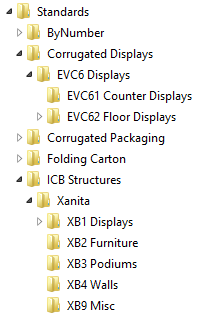 |
- The EngVIew-created displays are structured for easy and precise search. While browsing, the two main groups of structures open - Glued Displays or Non-Glued Displays.
- The ICB Structures library is organized into folders, for example, displays, furniture, podiums, walls and so on.
|
General Use Procedure for Finding Designs
-
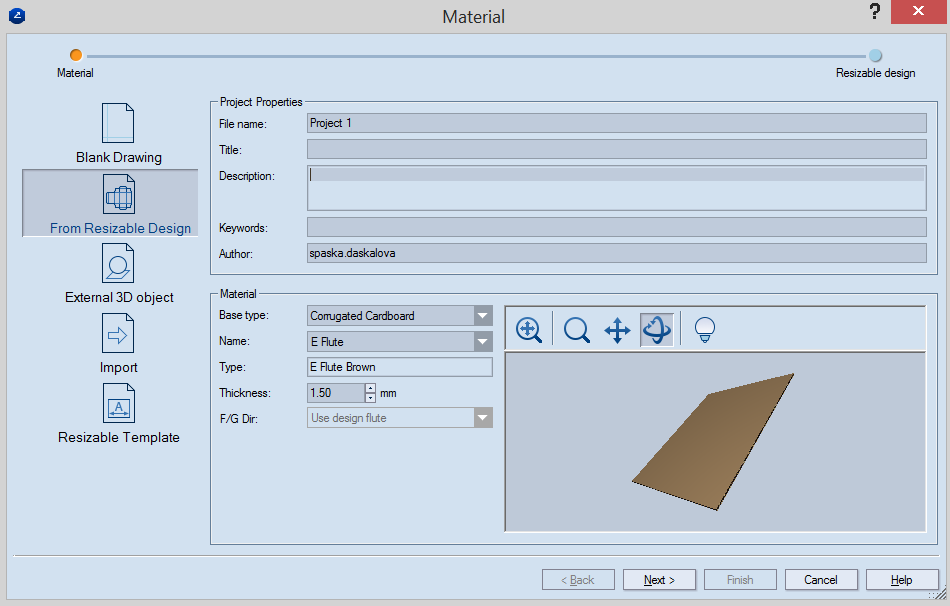
Open the New Project dialog box: click the New Project  button or select File | New..., then select From Resizable Design from the Material dialog box that pops up.
-
Under Project Properties, in the fields add information that pertains to the current project.
-
Under Material, enter the respective information about the material that will be used in the project: for base type, material name, material type and thickness.
-
Find design that you want: browse the Library in the Next dialog box that pops up until you find the respective design (e.g.EVC62001 Multiple-Shelf Display.evr)
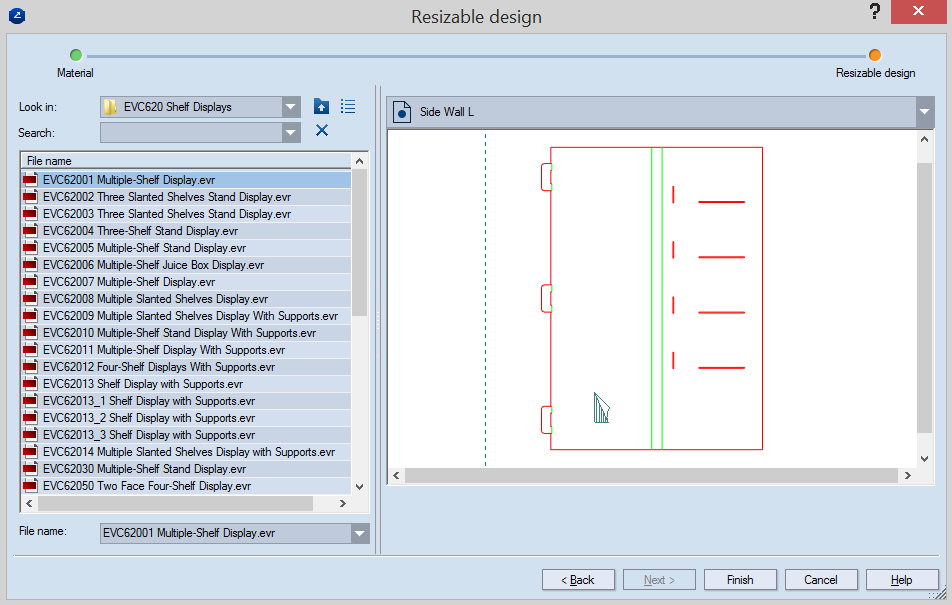
Open design that you want: click Finish or double-click the respective file.